From search to notes, in one workspace.
Search, compare judgments and keep notes in L-Wiz’s terminal interface. Every screenshot below shows the workspace searching the public demo’s case-law collection.
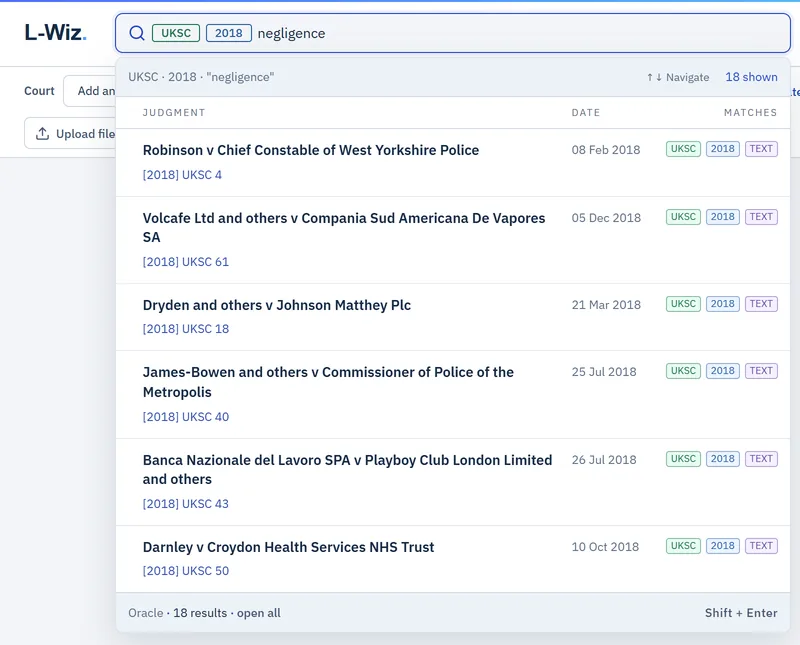
Search
Type a neutral citation, a party, a phrase or a few words. Results appear as you type, and the address bar keeps the complete search as a link you can share.
- Narrow results by court or year. Typed commands become coloured filters: a court in green, a year in blue.
- Match tags show why each judgment is listed: its court, its year or the text.
- Open every result in Oracle with ⇧ + Enter.
/TOPICTopic- One area of law
/TAGTag- Specific legal subjects
/UKSCCourt- A court or tribunal
/2023Year- A year or a span
/PHPhrase- The exact words, in order
/PSParty- Named parties only
[2018] UKSC 4Exact neutral citation/UKSC /2018 negligenceCourt, year and text/PS RaleysNamed party/TOPIC:tax-duty /TAG:vat input taxTopic, tag and text
Oracle
Work through every result of a search in its own window. Sort by relevance, date or citations, narrow by court, year or document type, and see why each result matched before you open it.
Using Oracle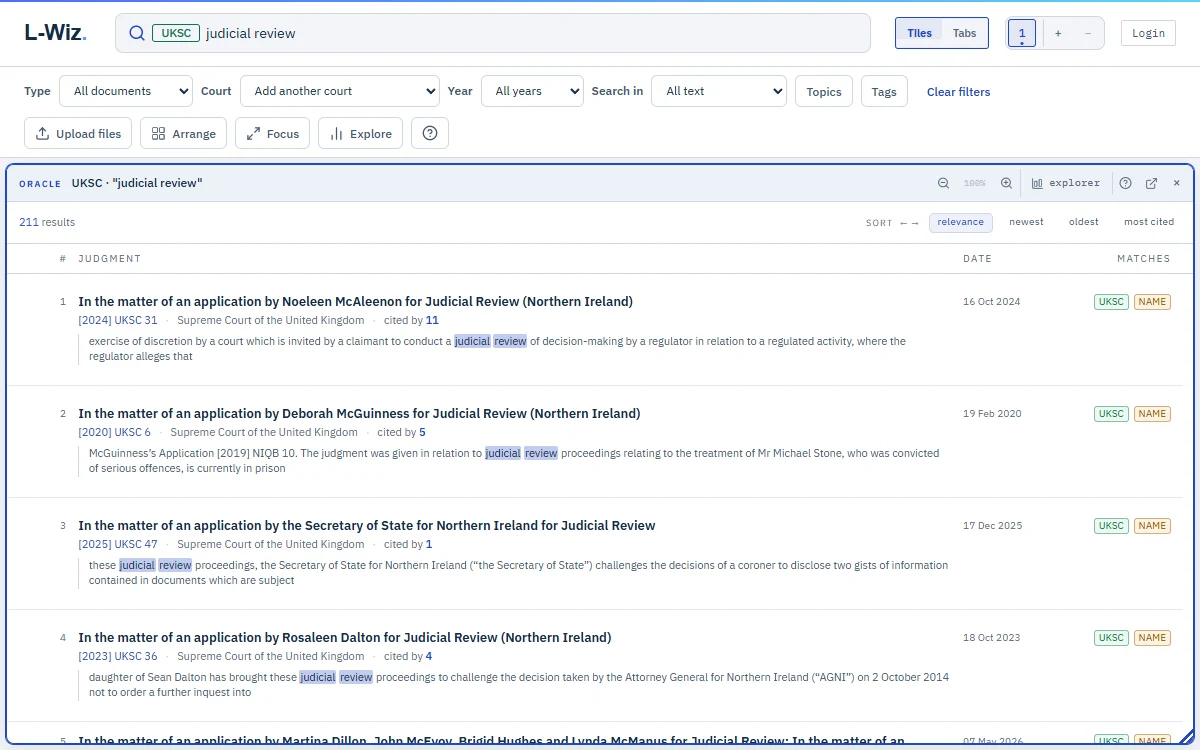
- Narrow the search with commands or the court, year and type controls. Each Oracle keeps its own search.
- Sort by relevance, newest, oldest or most cited, or step through the sorts with ← and →.
- Match tags say why each document is listed: its court, its year, its name or its text.
Explorer
See the shape of a search before you read it. Explorer charts an Oracle’s results by court, year, topic and tag, so you can tell where the authority sits and open any slice as a new Oracle.
Using Explorer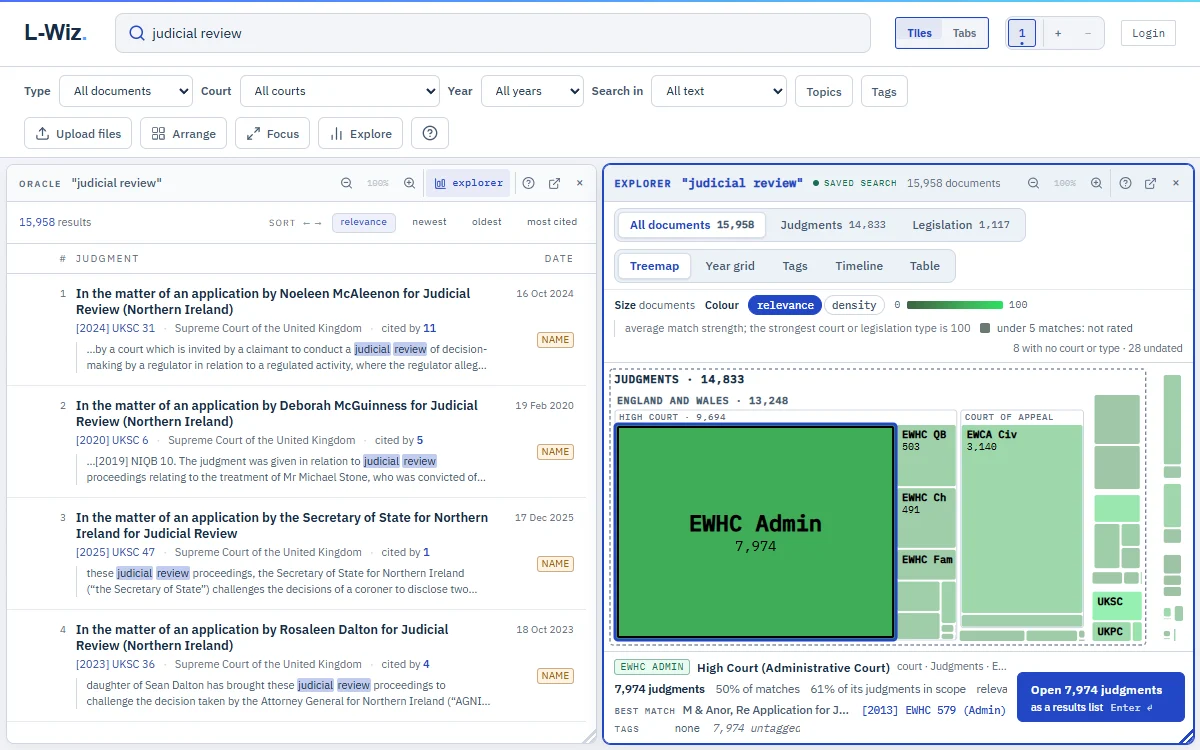
Workspace
Every judgment opens in its own window, automatically arranged beside the others. Compare authorities side by side, switch to tabs for focused reading, and keep separate lines of research in up to nine workspaces.
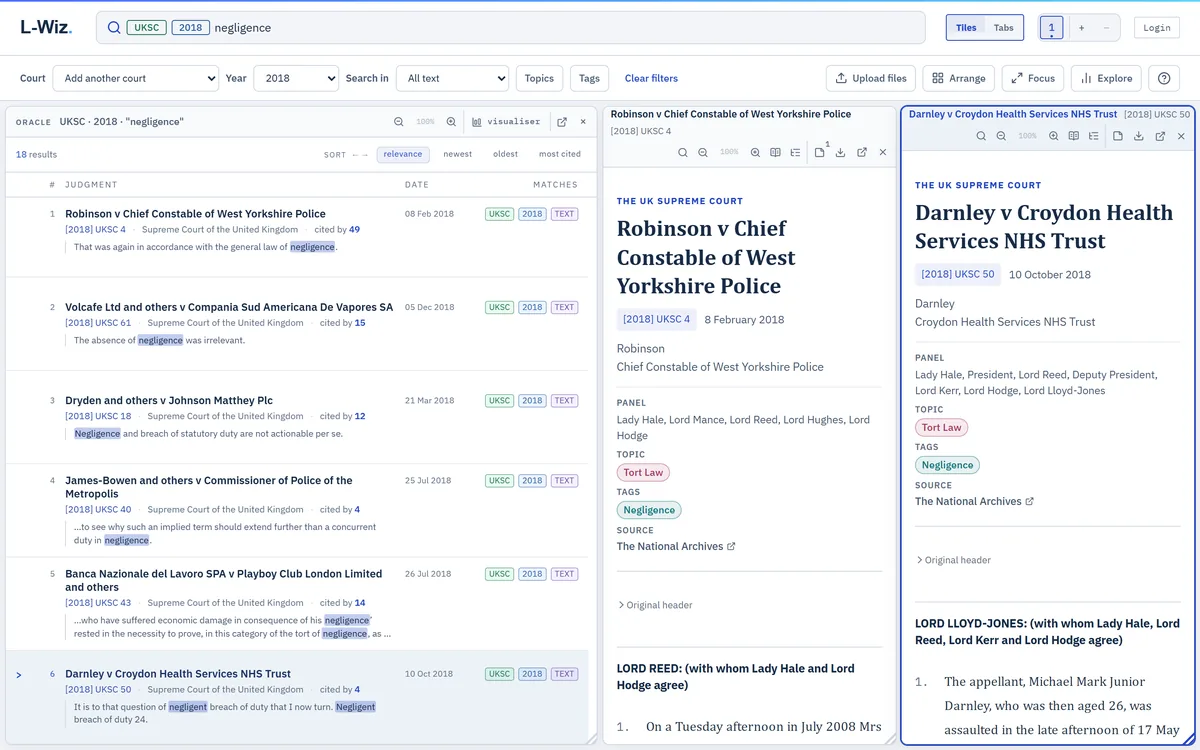
- Read side by side or in tabs, chosen per workspace.
- Upload your own files to read beside the case law.
- Find phrases with F, browse the outline by judge with O, and adjust text size or pop out a window.
Notes
Select a passage to highlight it and write a note beside it. Notes are stored in this browser only. Export each judgment’s notes to use elsewhere, as Markdown.
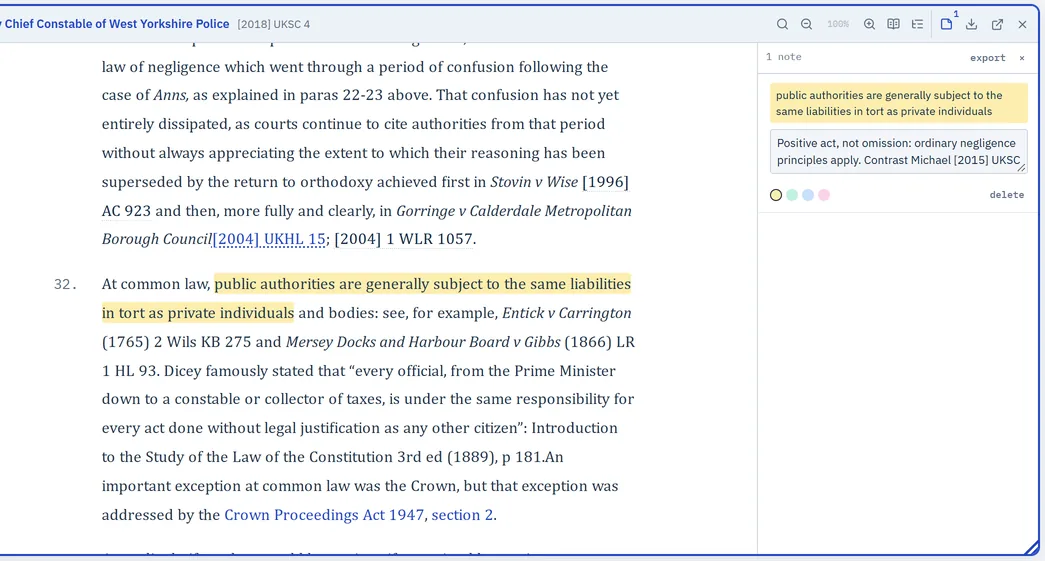
- Highlight a passage to keep the words that matter in view.
- Write a note beside the quoted passage.
- Export the judgment’s notes as Markdown.
Try the workflow on a real search.
The workspace opens in your browser with the public case-law collection.